Continuous Delivery for Godot on Itch.io
- 7 minutes read - 1371 wordsIntro
A software delivery process usually consists on a sequence of tasks that, while varying depending on the type of software, may include compiling an optimized release version and/or a packaged version of the application, server configuration, deploying binaries to that server, and several others.
And it doesn’t have to be any different for games. In this article I will show the solution I currently use to setup a continuous integration and delivery pipeline for Godot games using Github Actions for deploying directly to itch.io.
Itch.io setup
If you haven’t created your game page on itch.io yet, take a quick break to create it; we’ll need the game’s URL value in a later step.
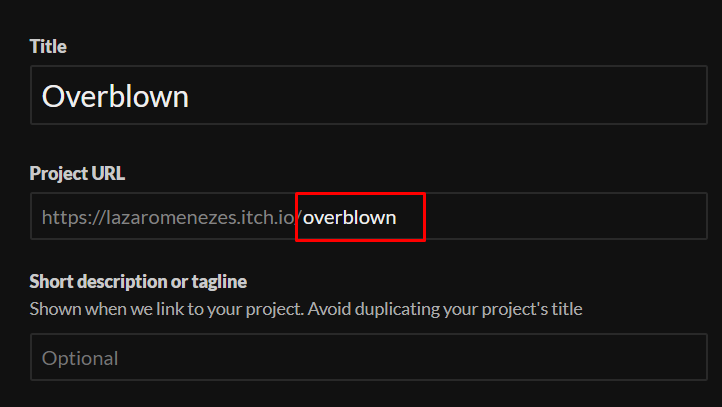
There is no need to upload anything right now; just setup the essential information, such as choosing whether the game will be download-only or allow web plays, for example, as the deployment will handled by itch.io client butler. Butler is a command-line tool for interacting with itch.io to perfor tasks such as uploading builds.
But how does butler access your page? Through an API key.
Creating an itch.io API key
To create an API key on itch.io, follow these steps.
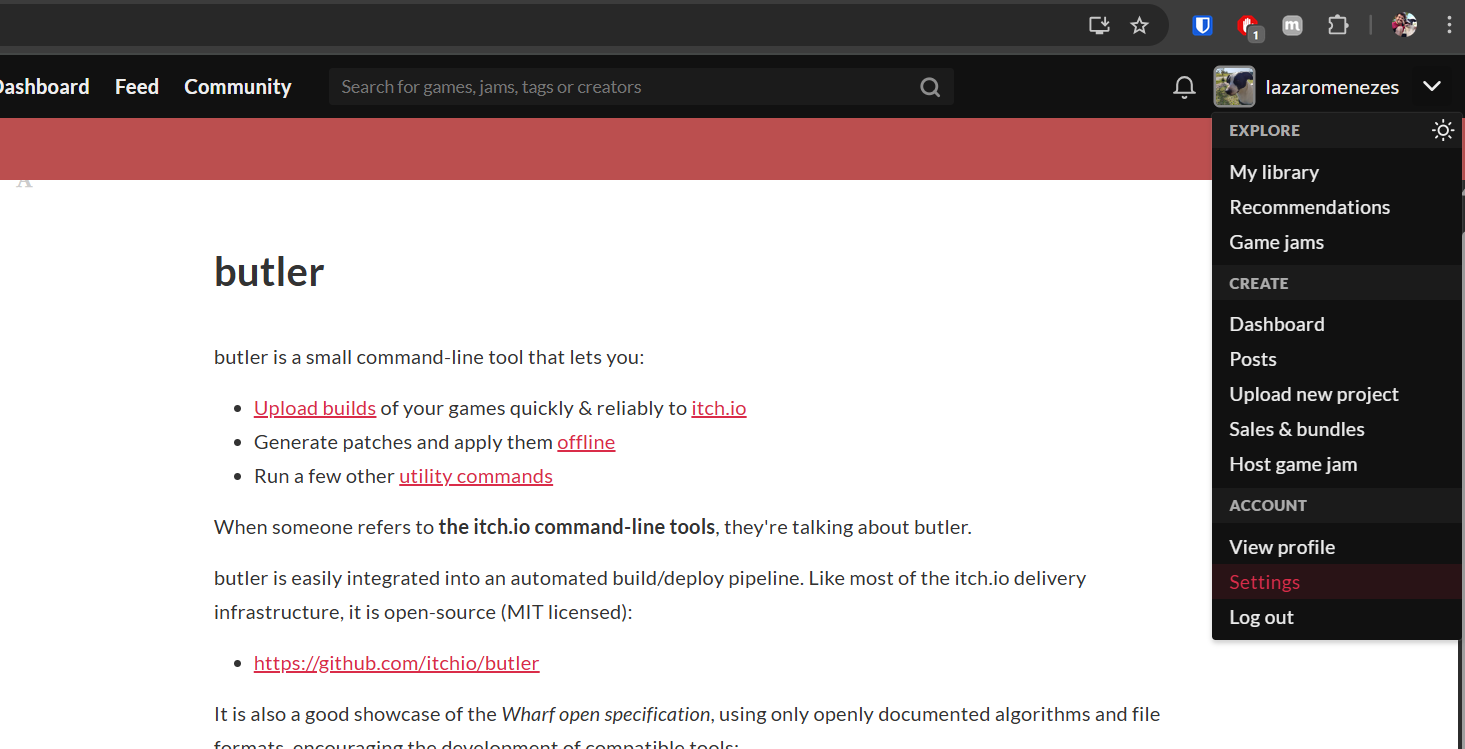
First, access your settings page.
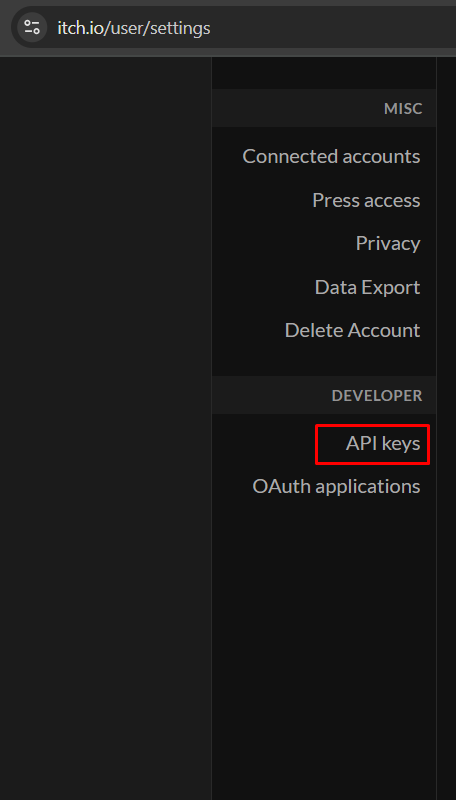
Then, in the left menu, reach the API Keys option, close to the bottom.
In this page, you’ll be able to view previous created keys as well as when they’re created. You can also revoke keys.
To create a new key, click the ‘Generate new API key’ button.
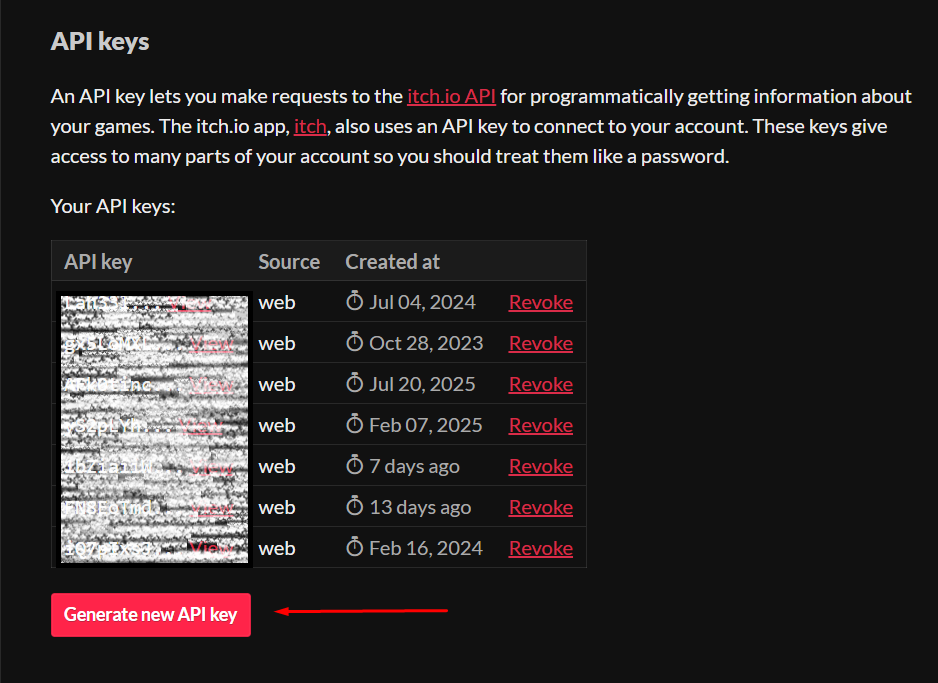
Then click on the ‘View’ button to visualize the full value and copy it cause we’ll use it in the next step.
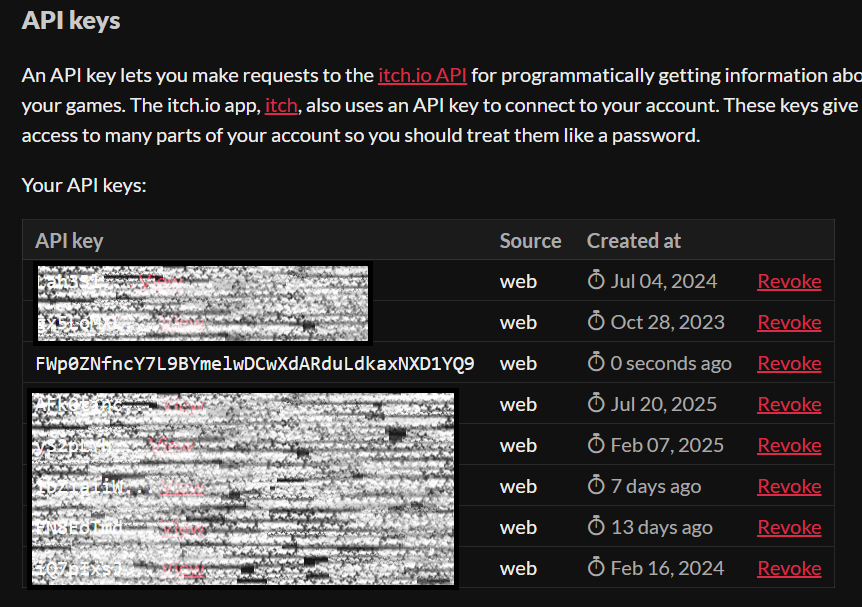
We’re done with itch.io, now let’s head to Github.
Github setup
The following steps assume you already have a Github repository for your game and is able to perform tasks as pushing code to it. In case you need, watch some of these short videos to get started.
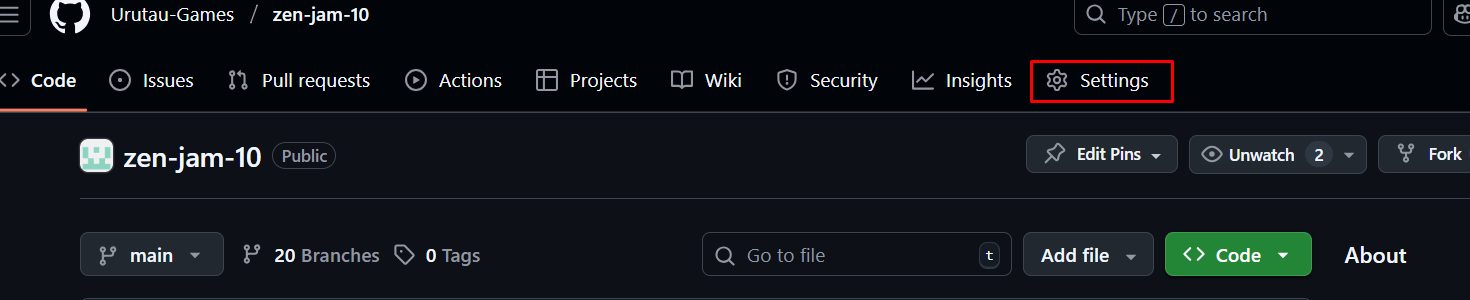
To start the pipeline setup, once in your repository page, you’ll need to to navigate to its settings.
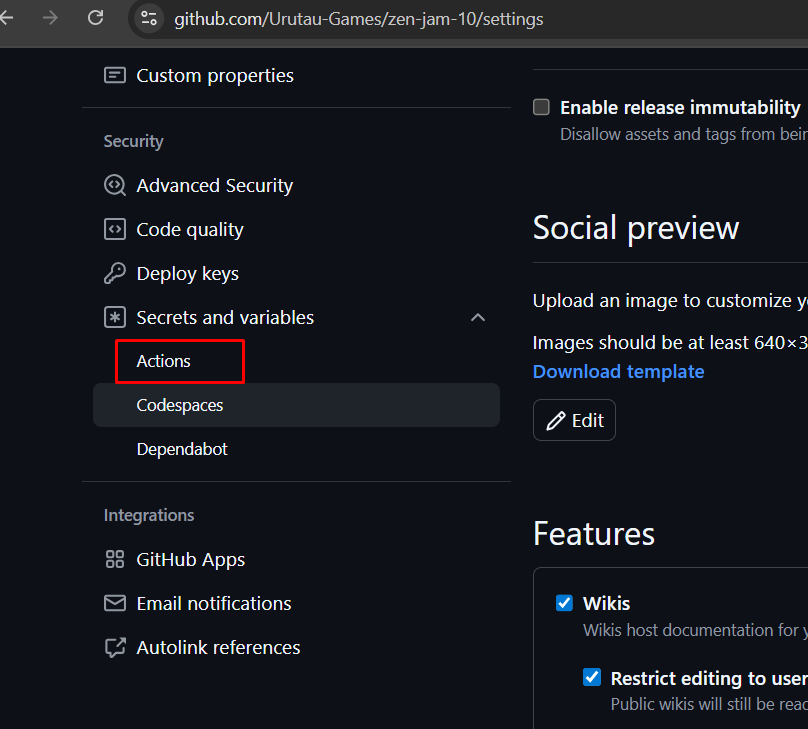
In the left menu, expand the ‘Secrets and variables’ group and click the ‘Actions’ option.
After the screen loads, click the ‘New repository secret’ button and create the three variables bellow changing the values accordingly to your game.
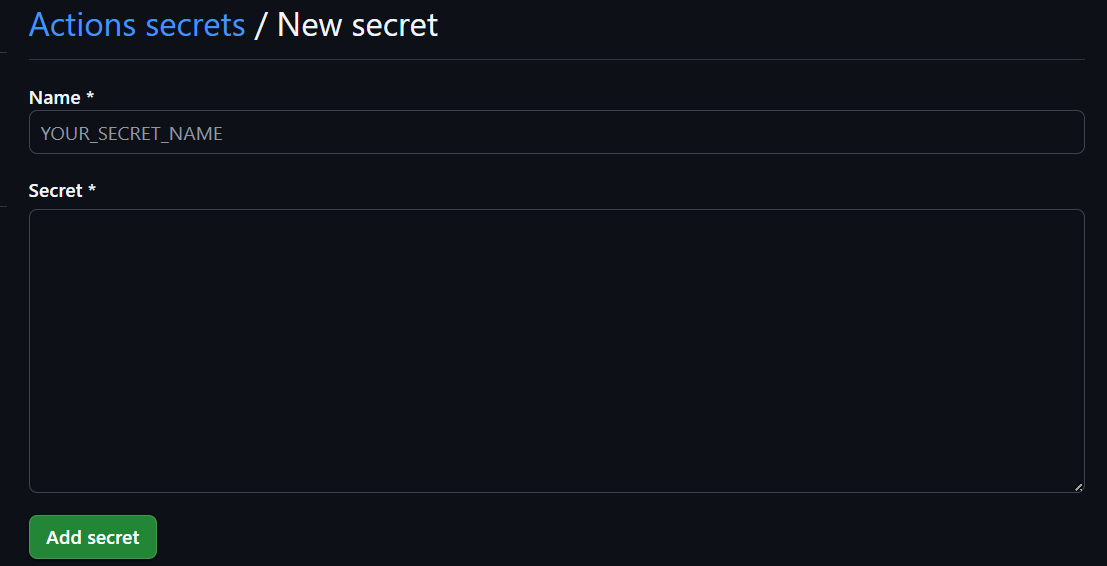
Name: ITCHIO_USERNAME
Secret: your itch.io username.

Name: ITCHIO_GAME
Secret: your itch.io game id. That's the value in the end of the game's URL.

Name: BUTLER_CREDENTIALS
Secret: the API key you created in the earlier steps.
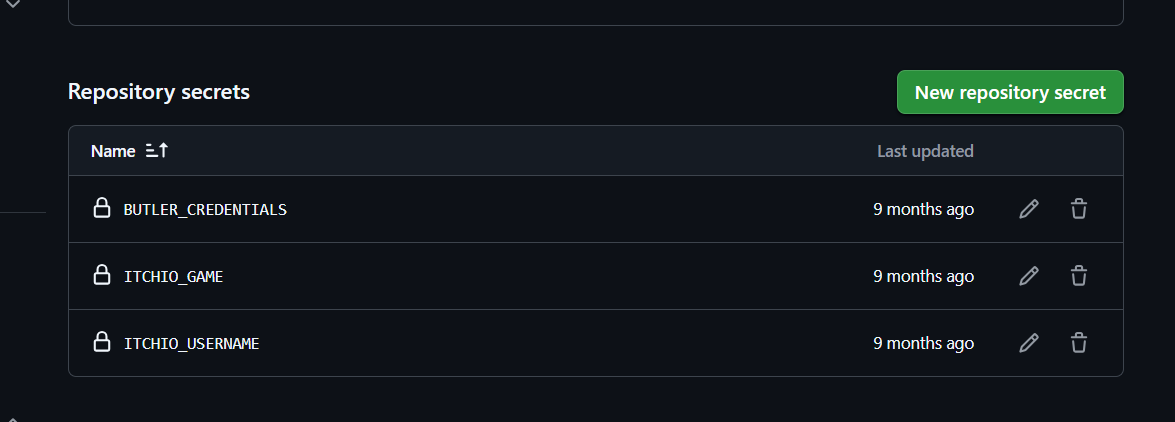
Once you’re done, you can see a screen similar to the picture below. Since we’re working with ‘Secrets’, you won’t be able to see the values anymore although they can be changed anytime you need.
Godot project setup
Finally on Godot! But before we continue, a disclaimer:
The following steps are how I’ve been doing it for my small projects and might have some shortcuts to minimize pipeline scripting. The same goals can be achived in many different ways.
Export configuration
This example shows a basic setup for exporting for Windows, Linux and HTML5 platforms.
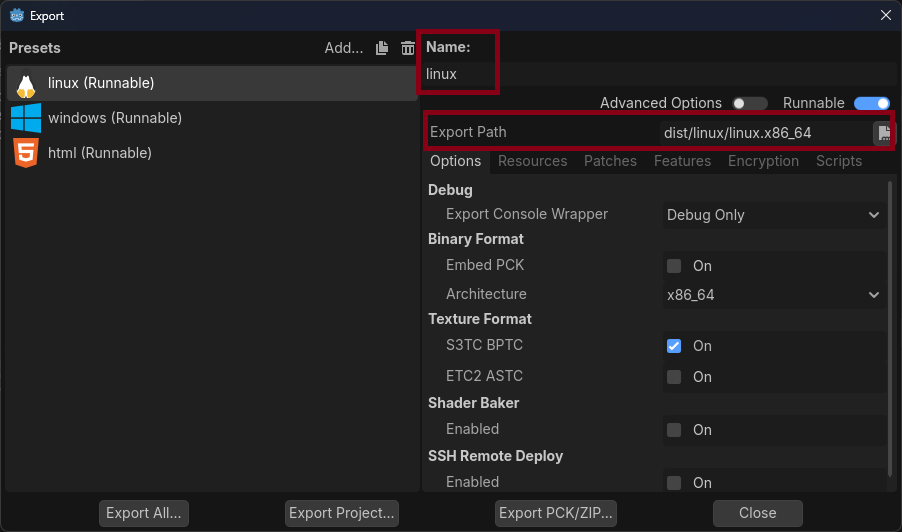
The minimal properties you’ll have to change are ‘Name’ and ‘Export Path’ but make sure to enable the ‘Runnable’ option in case it’s not on yet.
The next picture shows an example for the Linux setup and after it, the text box shows the values for each platform.
Linux
Name: linux
Export Path: dist/linux/linux.x86_64

HTML5
Name: html
Export Path: dist/html/index.html

Windows
Name: windows
Export Path: dist/windows/game.exe
If you’re following along step by step, please don’t change the linux, html e windows names neither the paths dist/linux, dist/html, dist/windows.In addition, for the web/html5 export, it’s important to keep the index.html name so itch.io can find the file for the web run.
That’s all in the Godot editor, but we do have a last step.
Pipeline script
In your game directory - or folder - you need to create a script with instructions for Github on how to export and deploy your game. For it, create a directory named .github and, inside it, another directory named workflows. Finaly, inside .github/workflows, create an YAML file. You can name it whatever you want, but I do usually named it ci.yaml.
The ci.yaml content the following. Continue reading after the file for understanding its key points.
name: "Chip Ball CI"
on:
  push:
    branches:
    - main

env:
  GODOT_VERSION: 4.5.1
  USER_VERSION: "0.0.${{ github.run_number }}"

jobs:
  build-desktop-clients:
    name: Export Game Binaries
    runs-on: ubuntu-latest
    strategy:
      fail-fast: false
      matrix:
        target: [windows, linux, html]
    steps:
      - uses: actions/checkout@v4
        name: Checkout

      - uses: chickensoft-games/setup-godot@v2
        name: Setup Godot
        with:
          version: ${{ env.GODOT_VERSION }}
          use-dotnet: false
          include-templates: true

      - name: Prepare dist
        run: mkdir -p dist/${{ matrix.target }}

      - name: Export release
        run: godot --headless --export-release ${{ matrix.target }}

      - uses: manleydev/butler-publish-itchio-action@master
        env:
          BUTLER_CREDENTIALS: ${{ secrets.BUTLER_CREDENTIALS }}
          CHANNEL: ${{ matrix.target }}
          ITCH_GAME: ${{ secrets.ITCHIO_GAME }}
          ITCH_USER: ${{ secrets.ITCHIO_USERNAME }}
          PACKAGE: dist/${{ matrix.target }}
          VERSION: ${{ env.USER_VERSION }}
In the first block, we provide a name for this configuration and specify that this script should only be executed when something is pushed into the main branch. This allows us to create other branches with items still in progress, reducing the risk of ending up with something broken on the itch.io page.
name: "Chip Ball CI"
on:
  push:
    branches:
    - main
Next, the script defines some variables: one to specify which Godot version needs to be used, 4.5.1 in this example, and another to assign a version number to each export. This will be used on itch.io. The expression ${{ github.run_number }} increments each time this action is executed in Github.
env:
  GODOT_VERSION: 4.5.1
  USER_VERSION: "0.0.${{ github.run_number }}"
The next block defines a job which contains the sequence of actions we must follow. Since it has more details, I’ll break up the explanation for each part.
In this first part, the script is defining the job itself, giving it the build-desktop-clients id, a name, and setting the environment in which it will be executed: ubuntu-latest.
jobs:
  build-desktop-clients:
    name: Export Game Binaries
    runs-on: ubuntu-latest
Next, the job is set to use the matrix strategy. This means that the steps we will define later will be executed once for each item in this matrix; in this case, the target option defines windows, linux, and html. That’s why it’s important to keep those names in the export settings.
strategy:
      fail-fast: false
      matrix:
        target: [windows, linux, html]
Now to the steps:
The first step checks the code out for the runtime environment.
- uses: actions/checkout@v4
  name: Checkout
Then it installs the Godot version given by the ${{ env.GODOT_VERSION }} variable. Since in this specific example was used in a ‘GDScript’ only game, the action is informed to not use dotnet. It’s also informed to include Godot export templates.
- uses: chickensoft-games/setup-godot@v2
  name: Setup Godot
  with:
    version: ${{ env.GODOT_VERSION }}
    use-dotnet: false
    include-templates: true
Next it creates the target export directories. Note the ${{ matrix.target }} variable. It’ll have the value defined in the strategy matrix above.
- name: Prepare dist
  run: mkdir -p dist/${{ matrix.target }}
Sequentialy, it does actually export the game. Making use of the Godot executable, the game is exported using the command line. Again, once for each platform defined in the matrix.
- name: Export release
  run: godot --headless --export-release ${{ matrix.target }}
And finally, the last step uses butler to upload the game straight to your itch.io page. That’s where all the secrets defined earlier are used.
- uses: manleydev/butler-publish-itchio-action@master
  env:
    BUTLER_CREDENTIALS: ${{ secrets.BUTLER_CREDENTIALS }}
    CHANNEL: ${{ matrix.target }}
    ITCH_GAME: ${{ secrets.ITCHIO_GAME }}
    ITCH_USER: ${{ secrets.ITCHIO_USERNAME }}
    PACKAGE: dist/${{ matrix.target }}
    VERSION: ${{ env.USER_VERSION }}
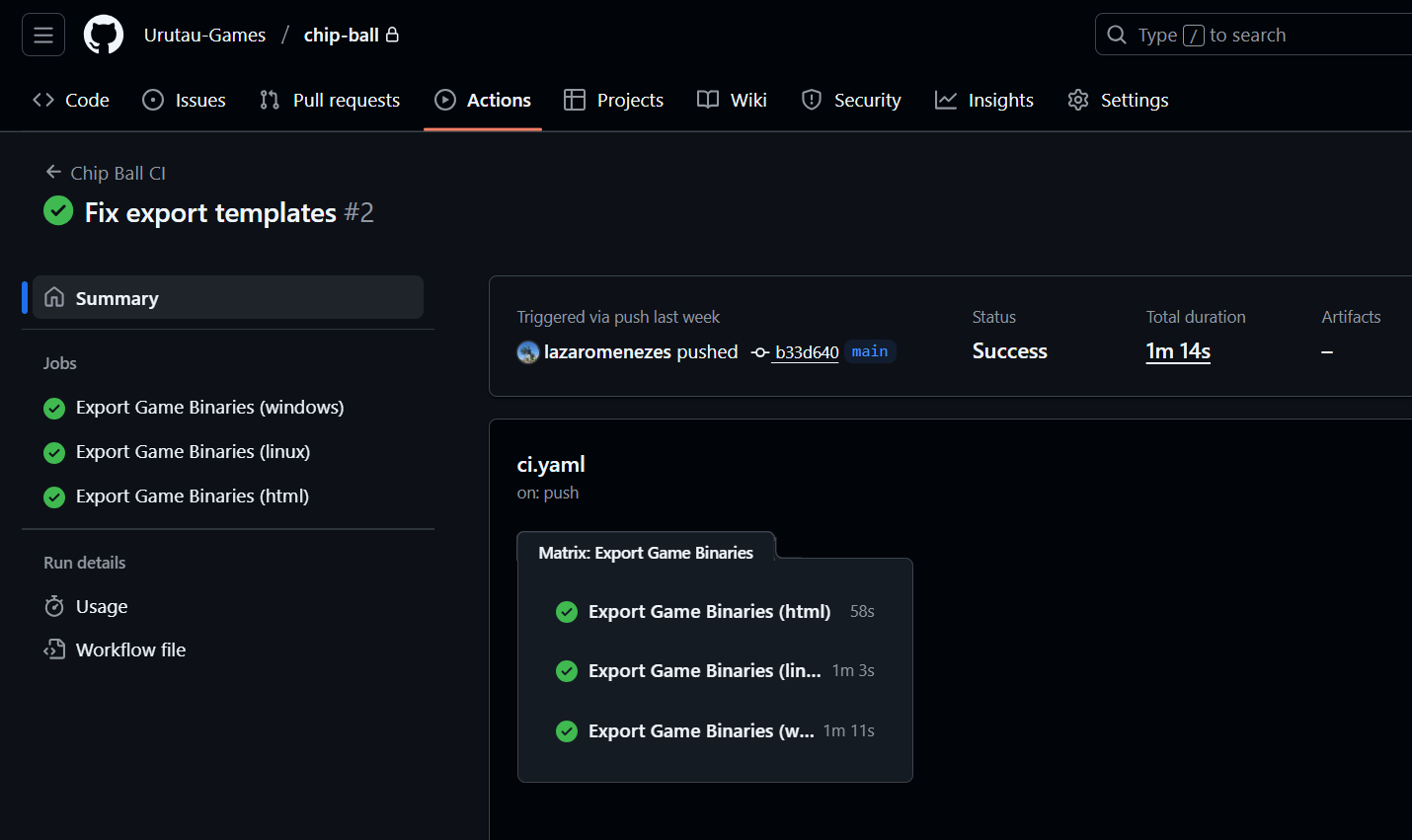
If everything works, the next time you push something to your main branch, the action will kickoff and, after a couple of minutes, your game will be available at itch.io.
Final words
This method I presented is the way I currently use to automate my projects, but that doesn’t mean it’s the only one, neither the best. There are other actions besides chickensoft-games/setup-godot@v2 that also configure a Godot environment, as well as other CI/CD tools like GitLab and Jenkins, but regardless of the method, it’s a good choice to have a way to reduce repetition and, in a way, guarantee that your games are always exported in the same way, avoiding surprises that a development environment can offer.